
How to clean and preprocess survey data in Stata
Welcome to the Stata Guide on cleaning and preprocessing survey Data! Cleaning and preprocessing are crucial preliminary steps when conducting research which utilizes survey data. Often, there are many elements of survey data which need to be adjusted before being able to successfully conduct relevant analyses.
Throughout this guide, blue phrases will be used to indicate commands, green phrases for variables, and purple for links and downloads.
We’ll be using an adjusted version of the first file from the National Health and Nutrition Examination Survey (NHANES). The link can be found here. The dataset contains a breadth of demographic information which we will be learning how to clean and preprocess.
Here is the .do file which you can use to follow the guide with.
Begin by downloading the data, saving it in a folder, setting this folder as the working directory, and loading the dataset into Stata.
Install and open the relevant packages in the library through the following:

How is a Survey’s Design Specified?
The NHANES is a broad project which spans a variety of different surveys and topics. Its goal is to “assess the health and nutritional status of adults and children in the United States” (ICPSR, 2025). In the file of it that we’ve been using, we have four important variables related to the survey’s design and how it’s meant to be analyzed:
- WTINT2YR: Full Sample 2 Year Interview Weight
- WTMEC2YR: Full Sample 2 Year MEC Exam Weight
- SDMVPSU: Masked Variance Pseudo - PSU
- SDMVSTRA: Masked Variance Pseudo-Stratum
So, what do these mean and how do they allow us to specify something about the survey’s design?
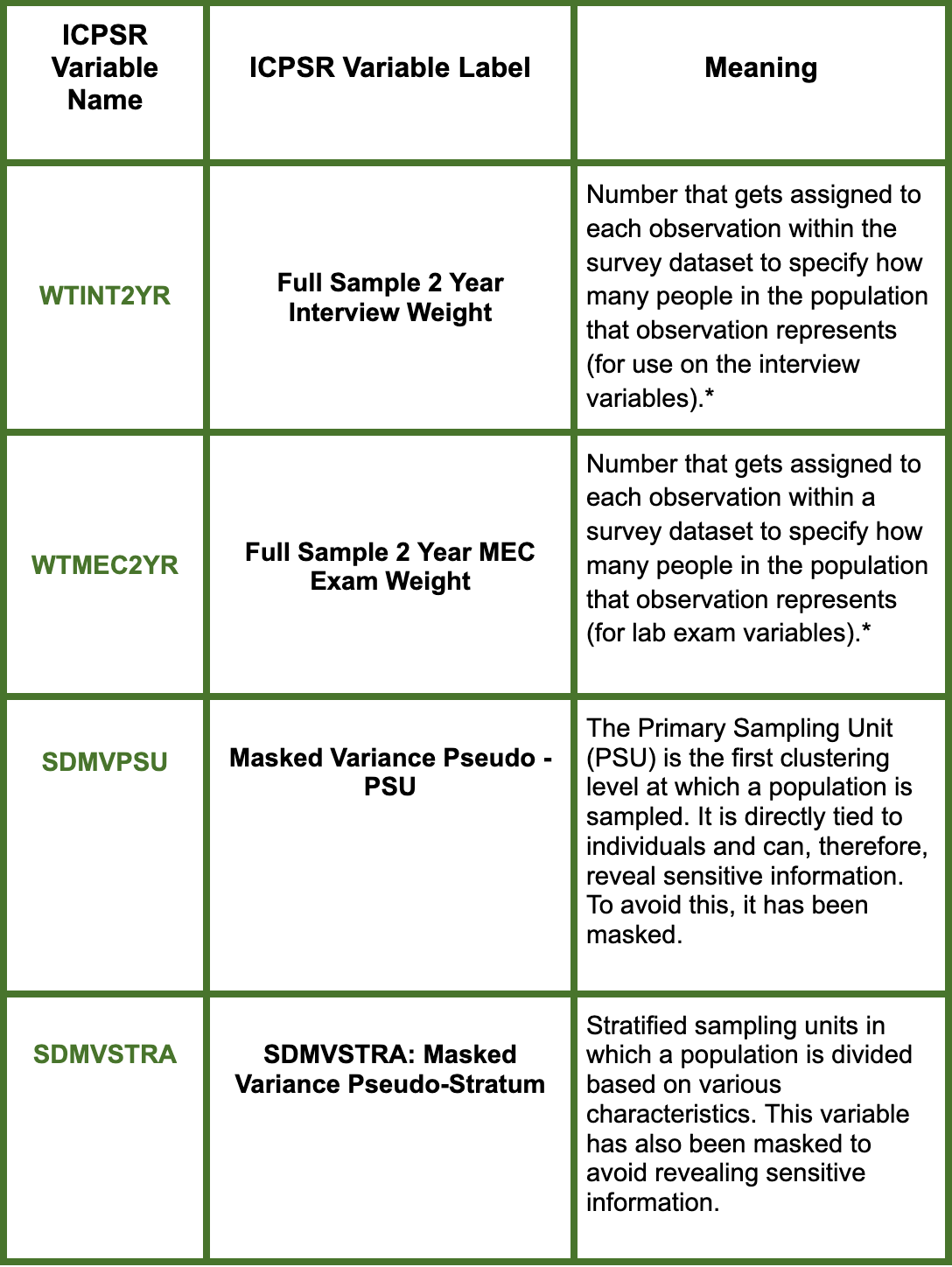
*WTINT2YR and WTMEC2YR are both sampling weights but while the first is to be used in relation to interview data, the second should be used for exam data. In our case, we will be focusing on WTINT2YR since the demographic variables have been collected through conducted interviews. WTMEC2YR is used on the elements of the survey which would need to be collected by a lab exam (i.e. blood glucose levels).
** Here is a small diagram from ‘Statistical Aid’ for help on visualizing the stages of sampling utilized within a survey’s sampling.

Now that we’ve learned about the four variables in the dataset related to the survey’s design, let’s use the appropriate ones to specify the survey characteristics in Stata.


We’ve now successfully adjusted the settings in Stata for the appropriate design specification. Let’s move on to cleaning the data.
Missing Values
Viewing the data in a spreadsheet (using the browse command) lets us observe Stata’s common period (.) classification for missing values.

We might be interested in learning about which variables are most impacted by missing values. Let’s make use of the misstable command which generates a table displaying missing values:
Stata
summarize misstableThe missing values are under the “Obs=.” column.

Since all of our variables already have their missing values stored as periods, Stata will know to automatically exclude them from the analysis. If they had instead been saved as 999, 000, or another common code for missing values, they could be adjusted by using the replace command (see syntax breakdown in ‘How to: Reclassify Variables in Stata’).
Now that we have learned about our dataset’s missing values, we can move on to other cleaning elements.
Renaming Variables
Renaming variables to names which will be easy to use and remember the meaning of is an important first step when handling survey data. Let’s think of a few variables for renaming:
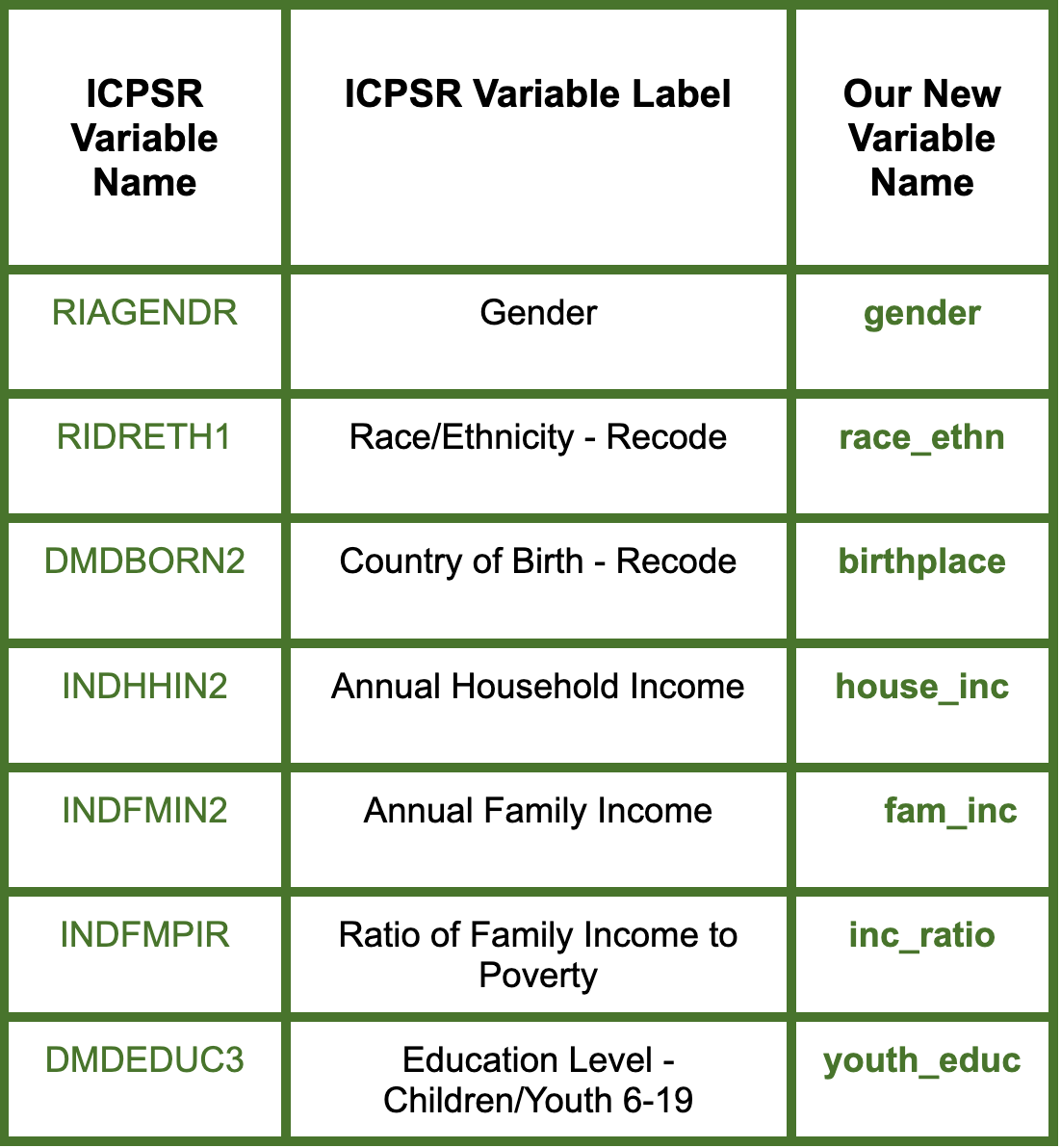
These are a few of the variables which we will be cleaning and processing throughout the rest of the guide. Let’s now rename them by using the rename command which has the following syntax:
Stata
rename oldname newnameTry plugging in the old and new names of each variable and running in order to rename each variable from the above table.
Now that we have renamed five common variables, we can move on to making sure there aren’t duplicates within the dataset.
Checking for Duplicates
An important cleaning step when working with surveys meant to contain one observation per interviewee is to make sure that there aren’t duplicates.
To check whether or not there are duplicates under the SEQN variable which represents a respondent’s ID, we can run:
Stata
duplicates report SEQN
The generated table shows us that there are 10140 observations under SEQN for which there are no duplicates, but 18 for which there are. 9 of these 18 duplicates are unique. To remove the 9 duplicates, we can run:
Stata
duplicates drop SEQN, force
We have now successfully deleted the 9 duplicates under respondent ID and can move on to removing outliers.
Removing Outliers
Identifying and removing outliers is an important step which can allow us to gain more accurate results from our analyses. Before we decide on an appropriate method for doing so, let’s learn about the distribution of our dataset.
Let’s narrow our focus specifically to the INCPERQ, or quarterly income variable, which we might expect to include outliers.
Using the summarize function on this variable and specifying that we want a detailed summary (including quartile breaks) could help us to remove outliers.
Stata
summarize INCPERQ, detail
We can observe that 25% of people made below $5,583, 50% below $10,949, 75% below $21,88, and 99% below 119,830 in the last quarter. Looking at the column which lists the largest values under the variable, we could get an idea of the values which should be considered outliers and subsequently dropped.
Let’s find all the observations where people indicated making more than 119,830, or the top 1% of quarterly income (INCPERQ).


We can now see that the 101 observations which fell within the highest percentile of the data have been removed. If we summarize INCPERQ once more, we can now see that the quartiles have been adjusted and the largest variables are no longer outliers.

Now that we’ve learned how to remove outliers, we can move on to examining our dataset’s proxy variables.
Assessing the Validity of Proxy Variables
In the context of the NHANES, there are variables which indicate whether the responses came directly from the respondent or someone else. These are MIAPROXY, SIAPROXY, and FIAPROXY. They represent whether a respondent used a proxy in the mobile examination center (MEC), sample person (SP), or family interview respectively.
Within your work with this survey, you might be interested in running certain analyses on just the responses from proxies and vice versa. In this case, we can make a new variable that codes ‘1’ for any of the three proxies and 0 otherwise.
Stata
gen proxy = (MIAPROXY == 1 | SIAPROXY == 1 | FIAPROXY == 1)
Browsing allows you to view the new column that has been created to take the value of 1 for any of the three proxies being present.

Let’s now run some summary statistics to see how responses might differ between proxies and non-proxies. First, running tab allows us to see that proxies are used in around 36% of the responses in the dataset.
Stata
tab proxy
Next, running some cross tabulation on the five variables we renamed earlier will allow us to see how the use of proxies differs across different demographics.
Stata
tab gender proxy, row
  tab race_ethn proxy, row
  tab birthplace proxy, row
  tab fam_inc proxy, row
  tab youth_educ proxy, row
Here are two of the tabulation output tables for between gender and proxies and birthplace and proxies:

We can observe that there are little to no differences between the amount of proxies used if respondents indicated being Male or Female, but there are more differences between the amount of proxies used when separated by birthplace. We could interpret this notable difference by making an educated guess about how various aspects such as cultural or language barriers could impact comfort with partaking in the NHANES’ survey process.
Take some time exploring other possible cross tabulations and interpreting their meanings on your own.
Congrats on making it to the end of this ERC Stata How-To Guide!
Take some time exploring other possible cross tabulations and interpreting their meanings on your own.
Congrats on making it to the end of this ERC Stata How-To Guide!
Additional Resources in Stata:
- How to: Reclassifying Variables in Stata
- How to: Create Multiplots in Stata
- How to: Append and Merge Data in Stata
- How to: Use Multiple Frames in Stata
By: Zoe Pyne